
Table of Contents Wizard for Confluence
Numbered headings, better tables of contents, and heading fixes you can review before saving.
Table of Contents Wizard gives long pages a readable table of contents readers can use on the page and in PDFs.
Choose the depth and style of the table of contents, hide headings that do not belong, and save section numbers into headings for comments, approvals, audits, and PDFs.
Key Features
-
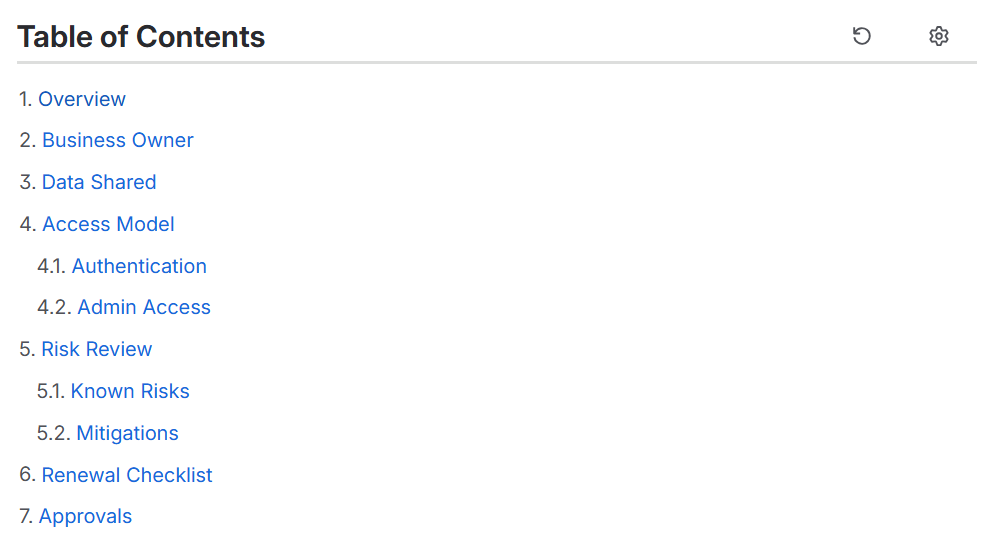
Table of contents navigation: Readers can jump from the table of contents to the exact section they need.
-
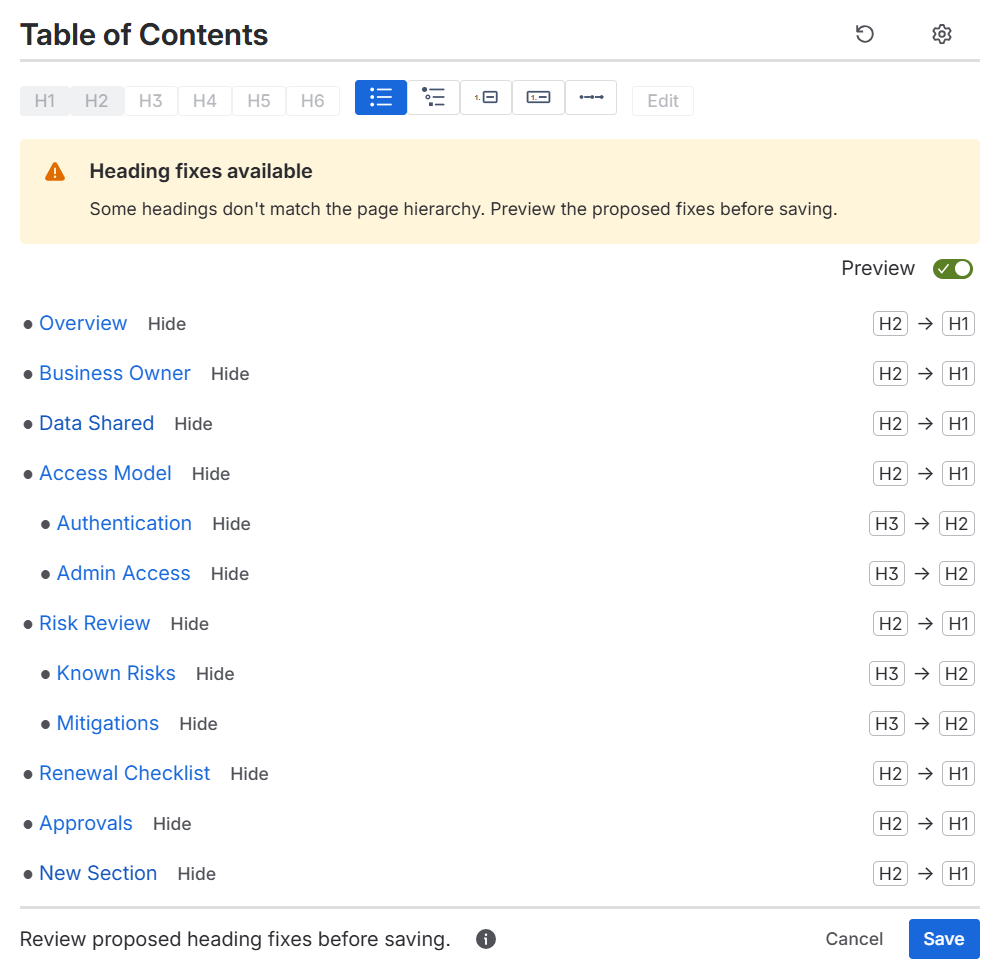
Preview heading changes before saving: Review numbering, heading edits, and heading-level fixes before they are applied.
-
Hide headings from the table of contents: Hide headings that should not appear in the table of contents, then use Show All to restore them when needed.
-
Control heading depth: Choose how many heading levels appear, from a short overview to a detailed page map.
-
Edit headings from one place: Use Edit to update the table of contents title and page headings from one place, instead of hunting through a long page one heading at a time.
-
Light and dark mode support: The app matches Confluence in light and dark mode while you edit.
-
PDF-friendly output: The table of contents is included in PDFs, and its links still jump to the matching sections.
For more details, read our Guide…
Numbered headings
Add numbered headings to long Confluence pages without manually renumbering every section.
Use table-of-contents-only numbering when you do not want to edit page headings. When comments, approvals, audits, or PDFs need section numbers that stay with the page, save the reviewed numbering into the actual Confluence headings.
After the page changes, refresh the table of contents to compare the current headings with the saved numbering. If a new heading is added, a heading is moved, or the numbering no longer matches the page, the app previews the updates before anything is saved.
Fix heading levels
Long Confluence pages often drift as sections are added and moved. If a page starts at the wrong heading level or a subheading skips a level, Table of Contents Wizard flags the problem and previews the suggested fix.
Review the proposed heading changes first. Save applies only the updates shown in the preview; Cancel leaves the page untouched.
Built for Confluence authors
A table of contents should stay maintainable as the page changes.
Hide headings, control depth, choose a display style, review pending page changes, and save only the updates you approve.
Choose table of contents styles
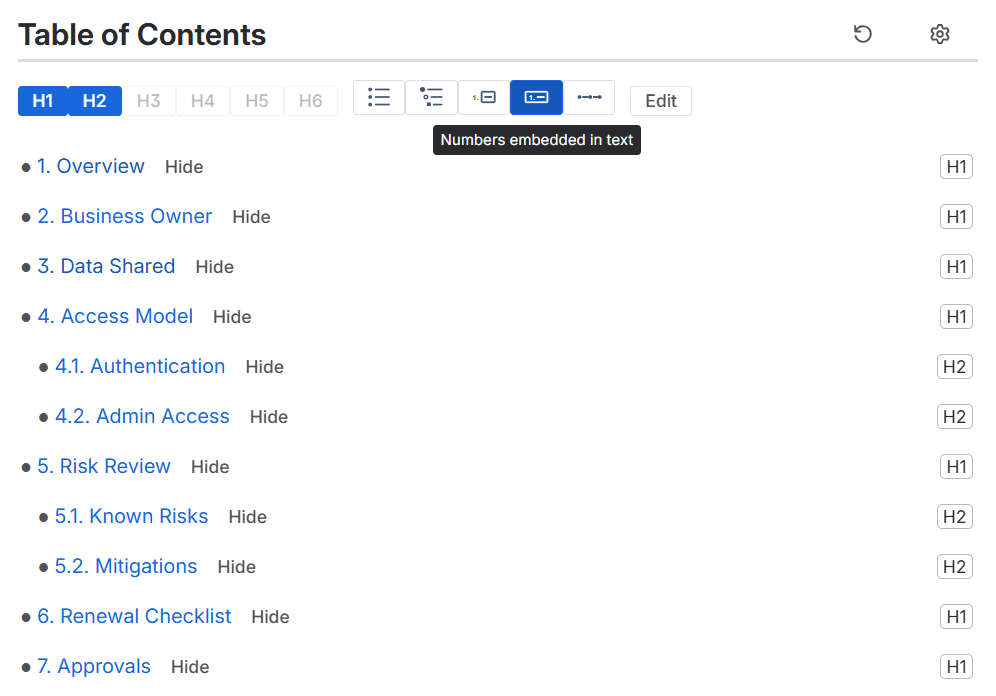
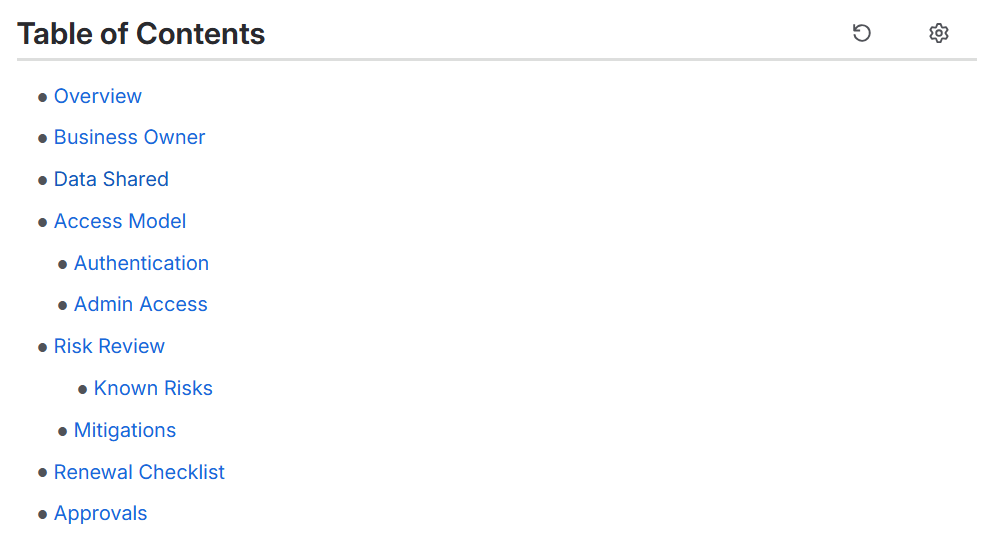
Use bullets for reference pages, nested bullets for deeper pages, numbered links for documents that need section references, or inline links for short pages that only need a compact jump list.
Change the style while editing. Readers see the finished table of contents without the editing controls.

FAQ
Does Table of Contents Wizard change the page headings?
Only when you choose an action that changes the page and confirm it. Numbering, heading fixes, and heading text edits are previewed first, then applied after Save. Cancel leaves the page unchanged.
Can I keep numbers only in the table of contents?
Yes. Use numbers outside text when you want numbered table of contents links without changing the page headings.
Can I hide one heading quickly?
Yes. Open the controls and choose Hide next to that heading. Show All brings every heading back.
Does it work in dark mode?
Yes. Table of Contents Wizard is designed for Confluence light and dark mode.