
Table of Contents Wizard Guide
for Confluence
Use Table of Contents Wizard to add a navigable table of contents, choose which headings appear, review heading changes before saving, and keep long Confluence pages easier to use.
Installation
Install Table of Contents Wizard from the Atlassian Marketplace, then add the macro to any Confluence Cloud page that needs a table of contents, numbered sections, or consistent heading levels.
Add Table of Contents Wizard
- Edit a Confluence page.
- Add Table of Contents Wizard from the insert menu.
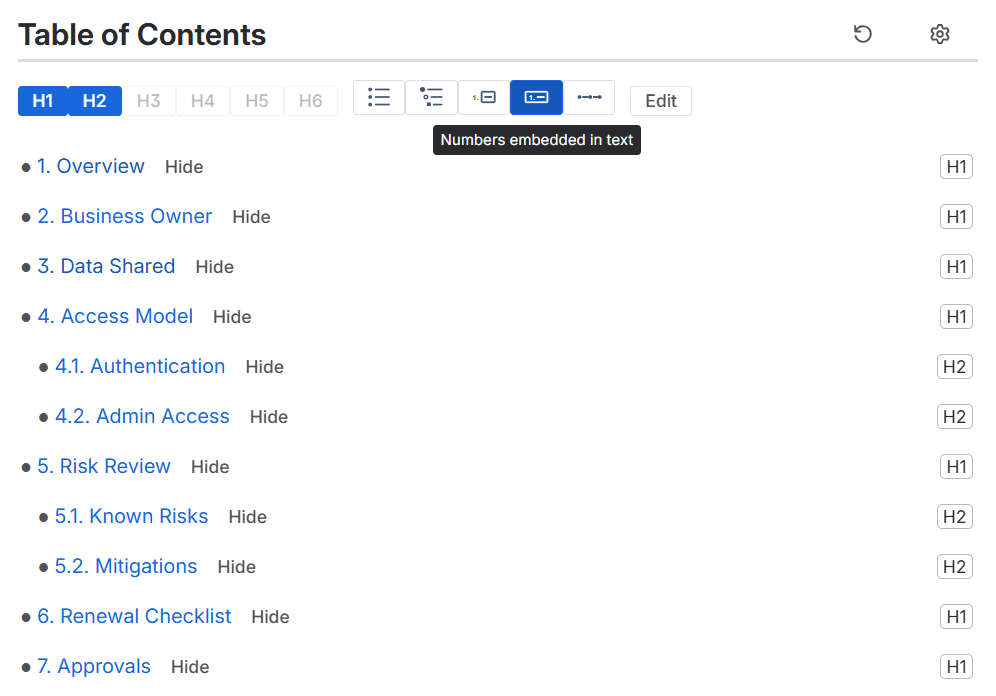
- It reads the current page headings and creates a clickable table of contents.
- Save or publish the page when the table of contents is ready.
Open the controls
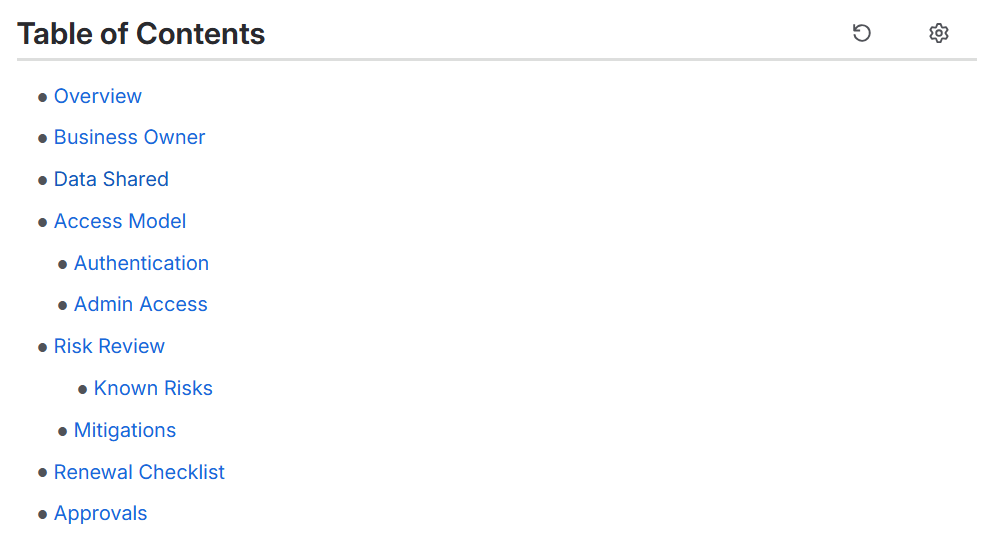
Use the cog icon to show or hide editing controls. With the toolbar open, each heading can show Hide controls and its heading level.
Use the H1-H6 buttons to choose how deep the table of contents should go.
Choose a table of contents style
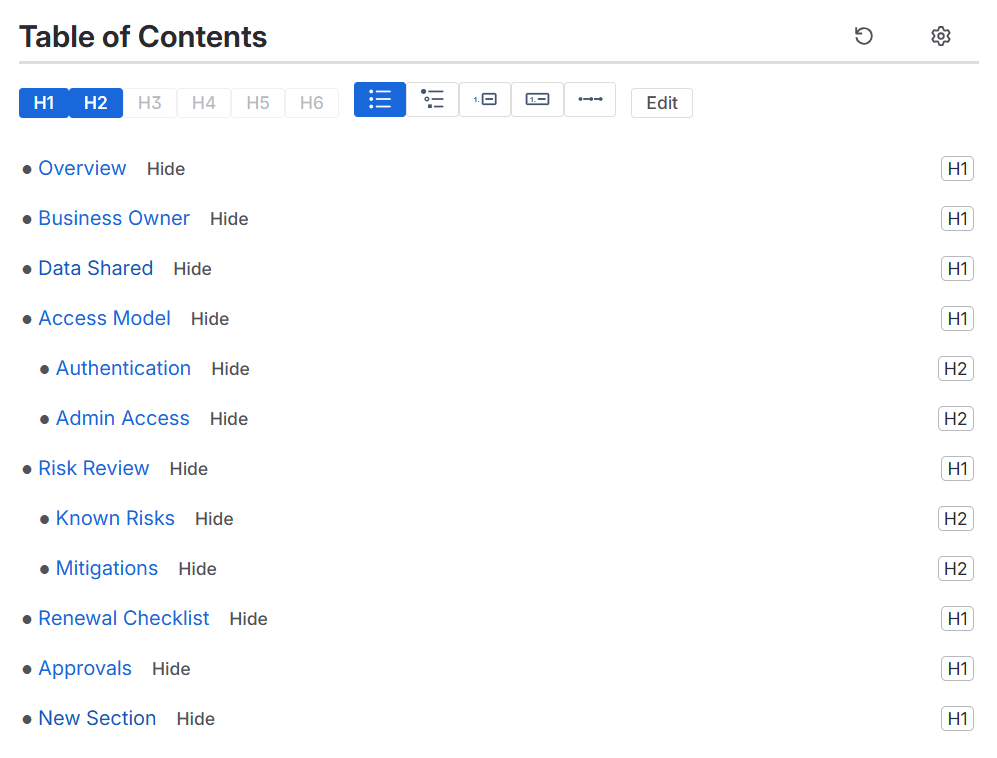
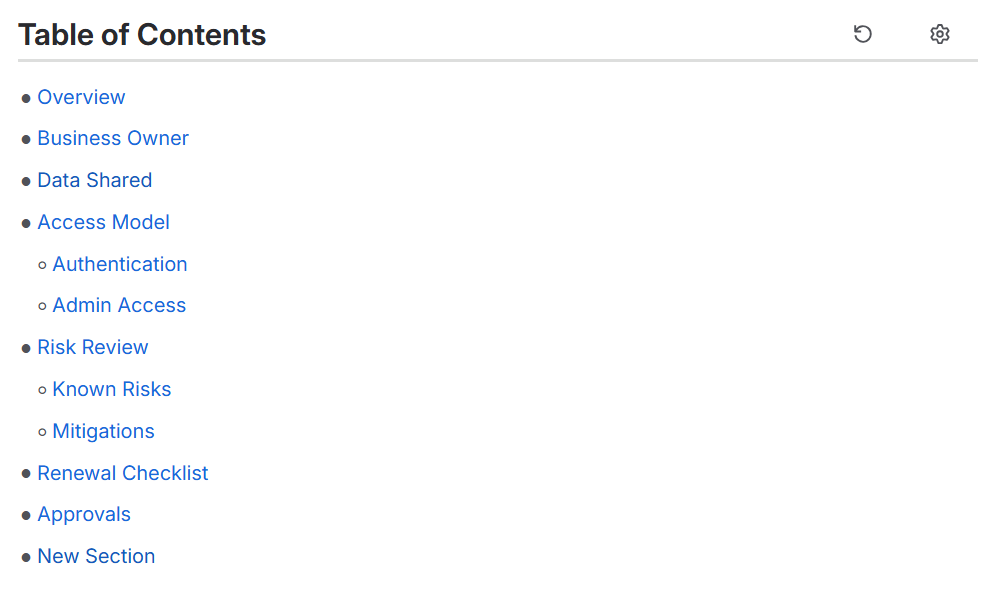
Choose the style that matches the page: bullets for a familiar table of contents, nested bullets for deeper pages, numbered links for documents that need section references, or inline links for a compact jump list.
The examples below show the table of contents after the editing controls are hidden.

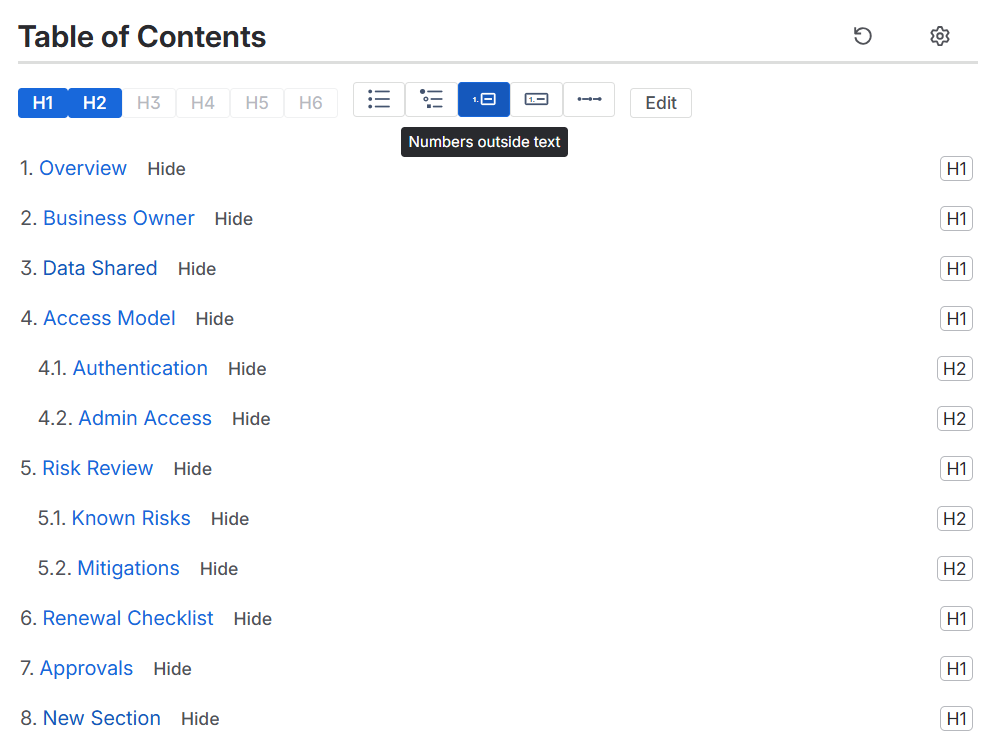
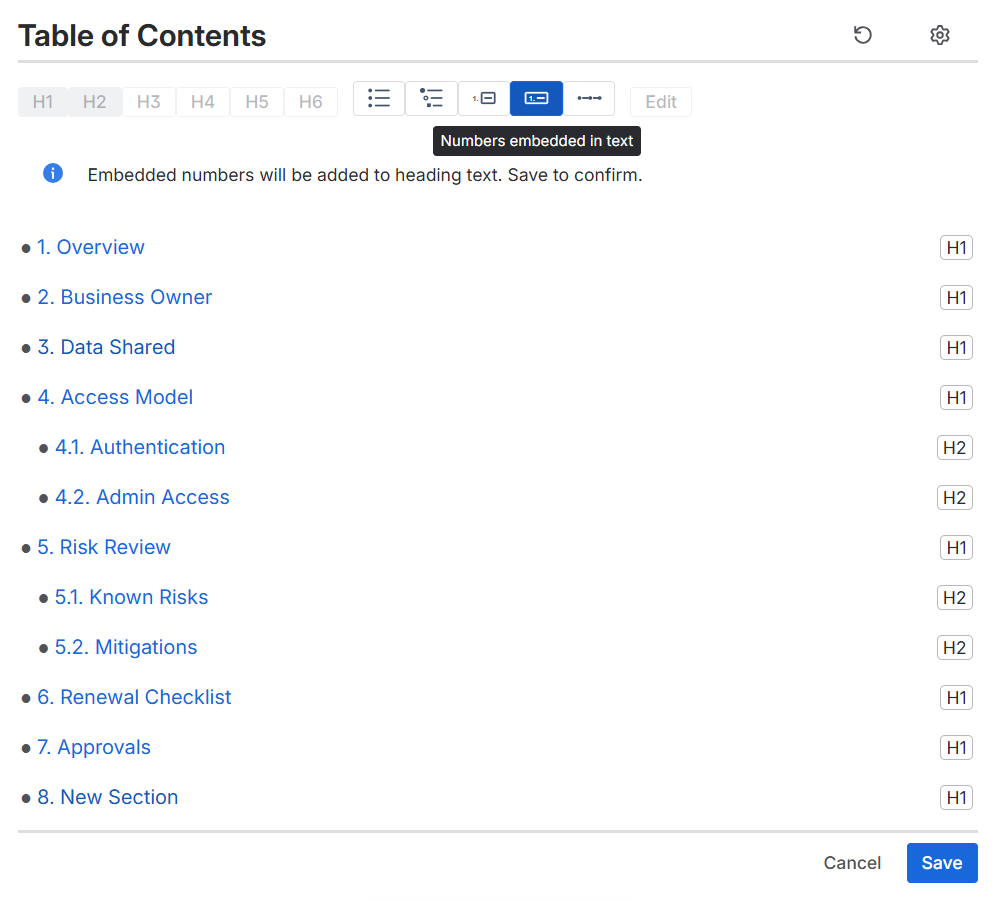
Use numbered headings
Numbers shown only in the table of contents change the table of contents display only.
When comments, approvals, audits, or PDFs need section numbers that stay with the page, save the reviewed numbering into the page headings.
Hide headings
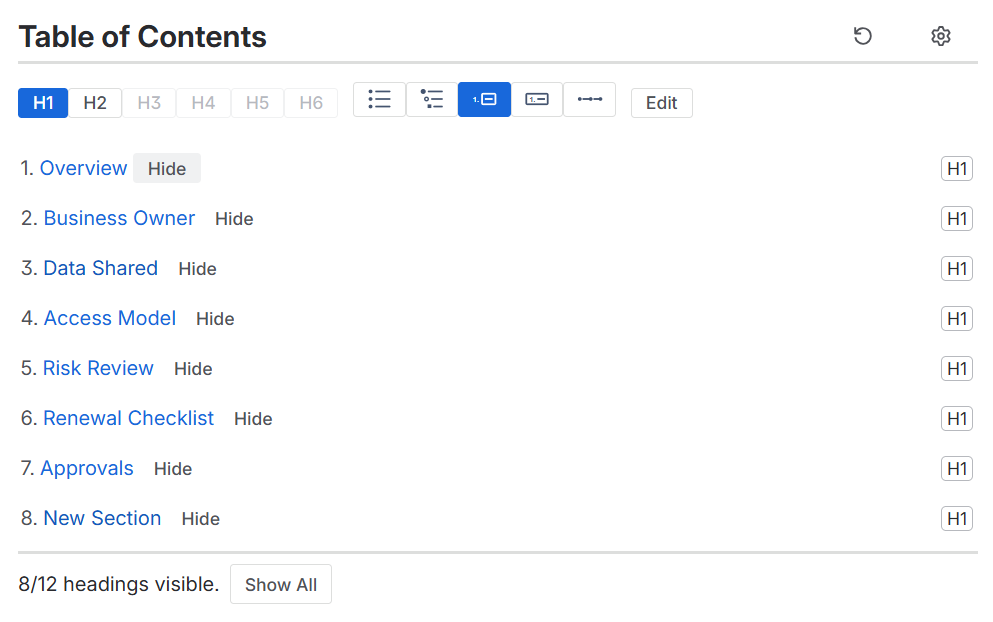
When the toolbar is open, use Hide next to a heading to remove it from the table of contents.
Use Show All to restore hidden headings.
Edit heading text
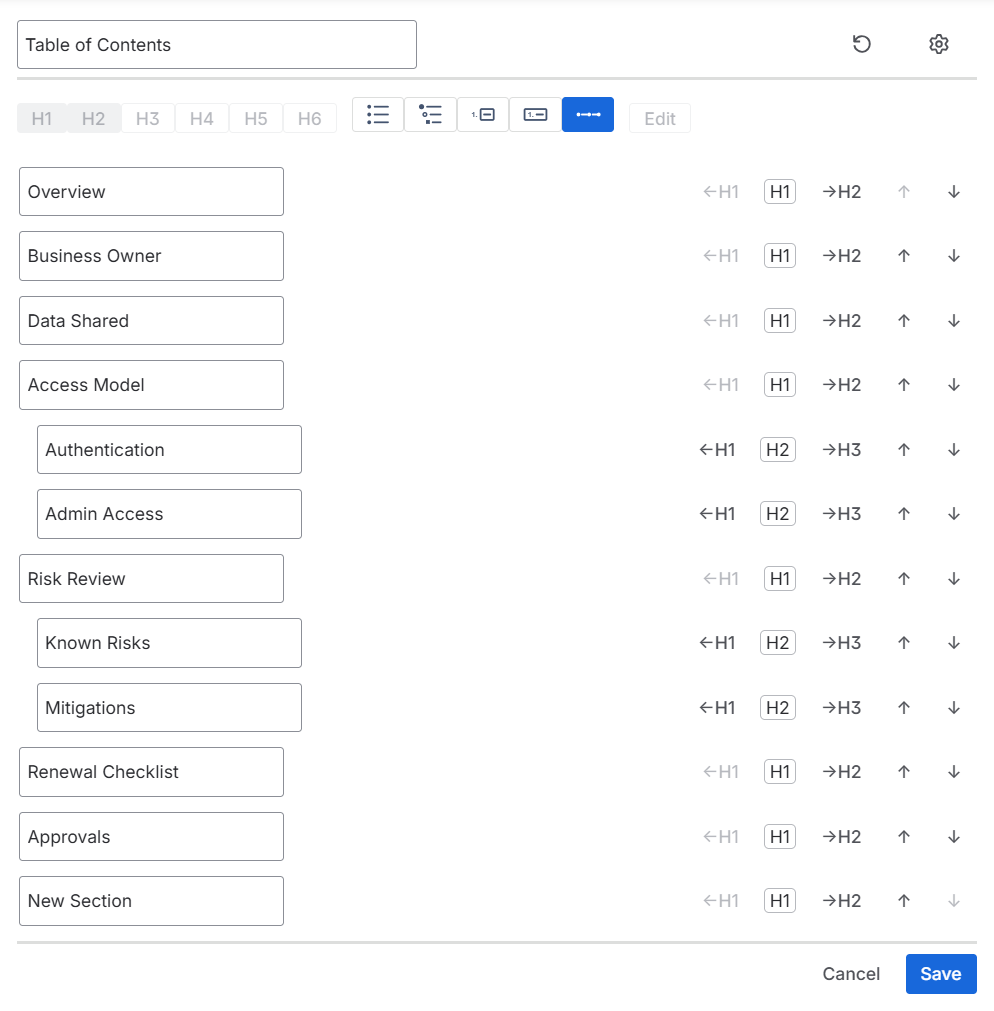
Use Edit to update the table of contents title and page heading text from one place.
These edits change the page headings, so you can review them before choosing Save or Cancel.
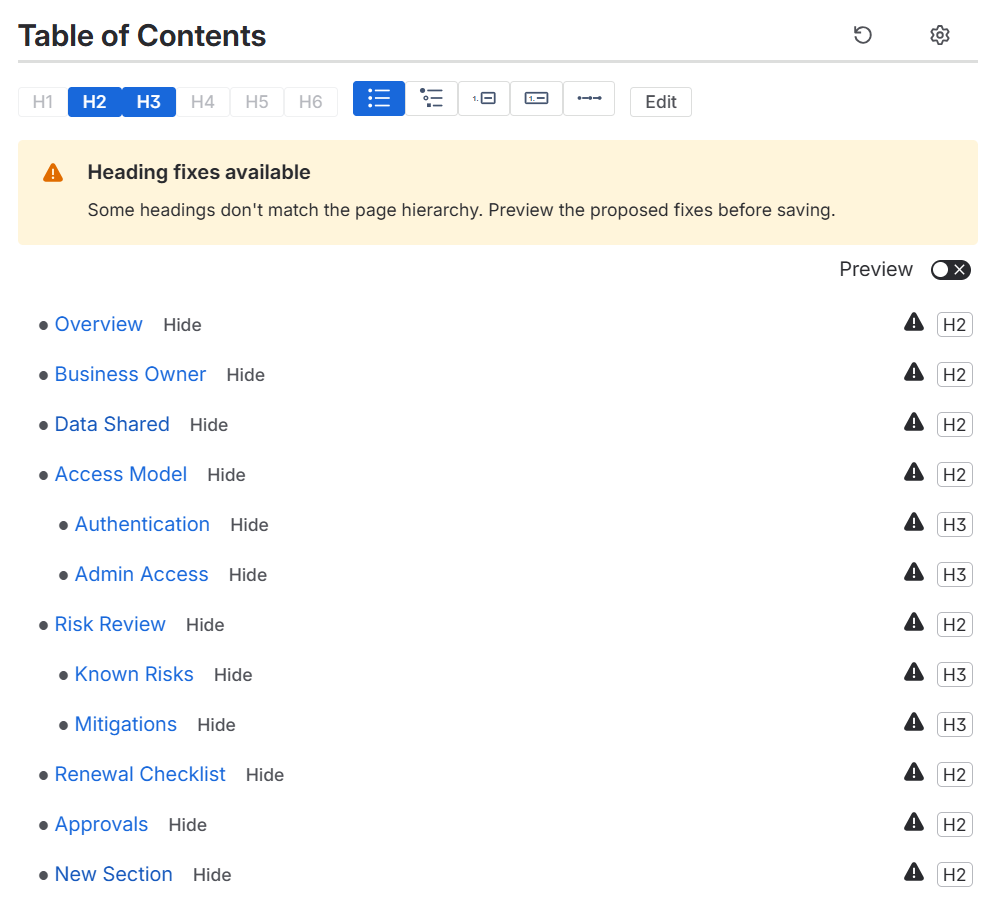
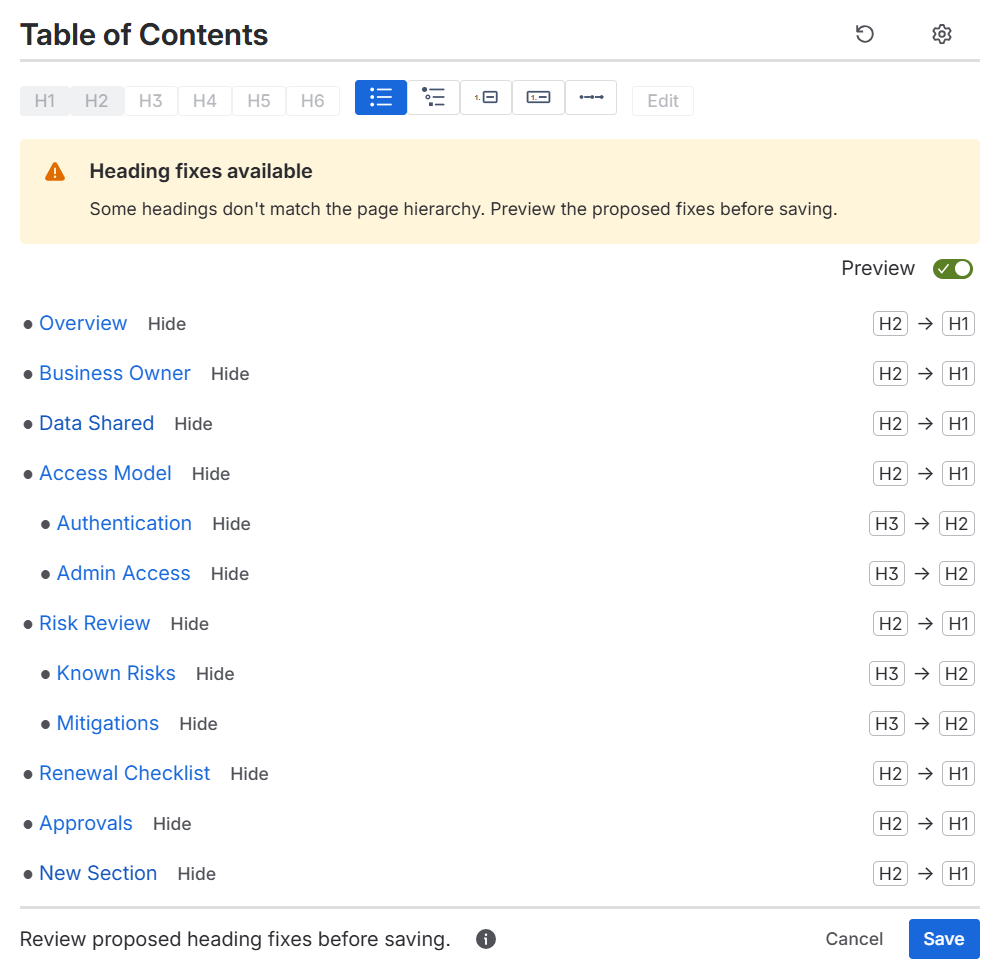
Preview heading-level fixes
Table of Contents Wizard looks for heading-level problems and previews the proposed changes. For example, if the first page heading starts too low, or a subheading skips a step, the preview shows the suggested fixes before saving.
Review the suggestions, then choose Save to apply them to the page or Cancel to leave the page unchanged.
PDFs
The published table of contents is included in PDFs. Its links continue to jump to the matching sections.
Numbers saved into headings become part of the heading text after saving, so they appear anywhere the Confluence page appears.
Troubleshooting
- If a newly added heading is missing, refresh the table of contents after saving the Confluence page changes.
- If a preview is not what you expected, choose Cancel and adjust the page headings before trying again.
- If you only want numbered table of contents links, choose numbers outside text instead of saved heading numbers.